Overview
Recent cybersecurity reports have uncovered a deceptive Google ad campaign targeting users of Homebrew, a popular open-source package manager for macOS and Linux. The campaign delivers seemingly legitimate advertisements that, when clicked, redirect unsuspecting users to fake download pages. These pages host malware designed to silently harvest passwords and other sensitive credentials from compromised Macs. This guide provides a comprehensive roadmap to help you recognize such threats, verify software authenticity, and adopt safe installation practices—whether you use Homebrew or any other package manager.
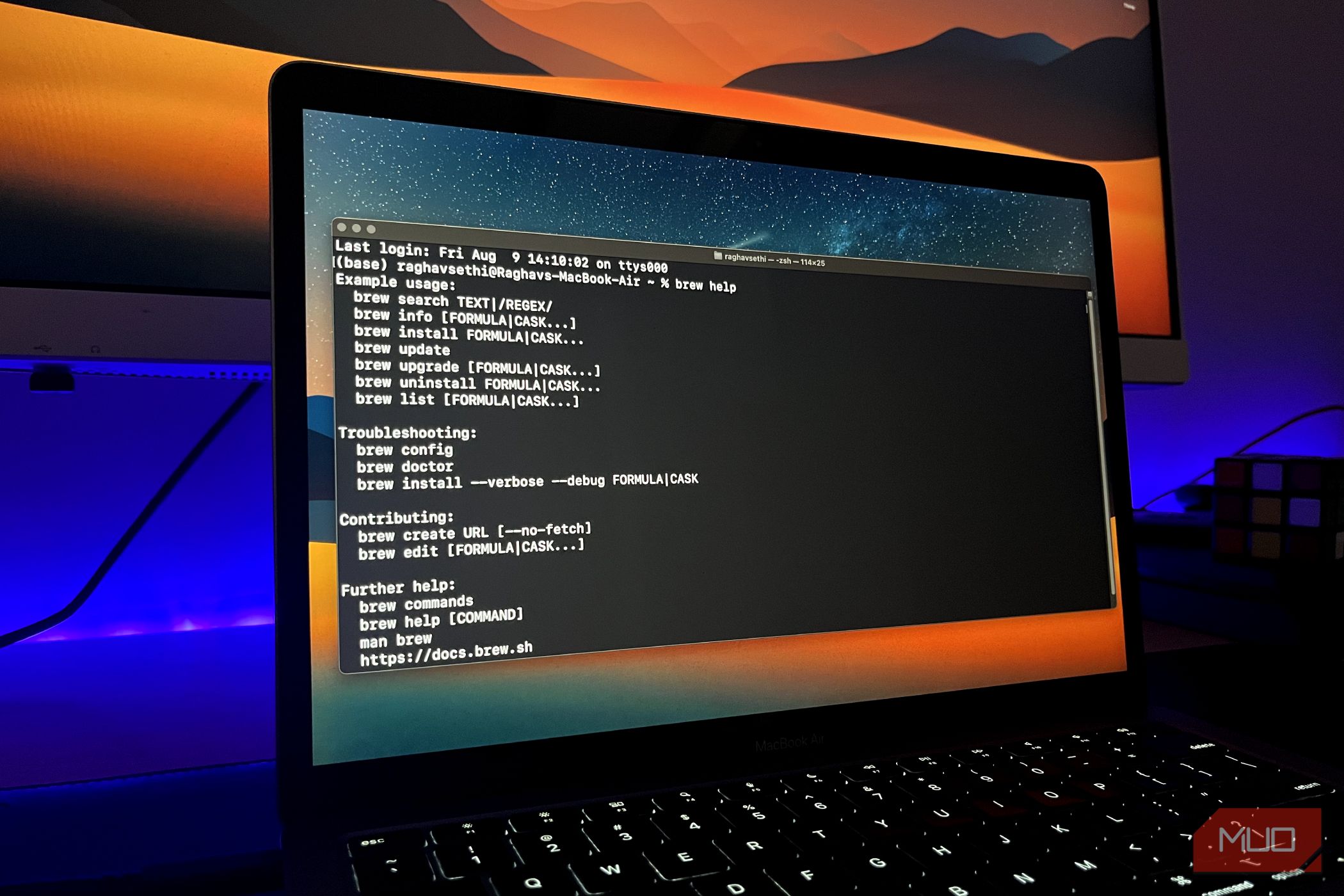
Understanding the mechanics of this attack is the first step toward protecting your system. The malicious ads mimic official Homebrew advertisements, often appearing at the top of search results. Once clicked, they lead to a cloned website that prompts you to download a malicious installer or script. The downloaded file then executes code that extracts login credentials, browser cookies, and other personal data, sending them to the attacker's server. Without proper vigilance, even experienced users can fall victim.
Prerequisites
Before diving into the protective measures, ensure you have the following:
- Basic familiarity with macOS Terminal: You should be comfortable running commands and understanding output.
- Homebrew installed (optional but recommended): If you don't have Homebrew, you can follow the safe installation steps below. If you already have it, you can use it to verify package authenticity.
- An updated browser: Use the latest version of Chrome, Firefox, or Safari to benefit from the latest security features.
- A code signing verification tool: macOS Gatekeeper and built-in tools like
codesignare sufficient.
Step-by-Step Instructions
Step 1: Identifying Fake Google Ads
Attackers exploit Google's ad network to display sponsored results that look identical to the official Homebrew website or other trusted sources. Here’s how to spot them:
- Check the URL before clicking: Hover over the ad link (without clicking) and examine the destination URL in the browser's status bar. Official Homebrew's domain is
brew.sh. A fake ad may usebrew-download.com,homebrew-download.net, or a similarly misspelled domain. - Look for the word Ad: Google marks sponsored results with a small “Ad” label. While not always malicious, every ad should be treated with suspicion.
- Verify the landing page: If you accidentally click, immediately check the URL bar. Legitimate Homebrew pages use HTTPS (
https://brew.sh) and have a valid certificate. Fake pages often use HTTP or have certificate warnings. - Use ad blockers: Tools like uBlock Origin can reduce exposure to malicious ads by filtering out known ad servers.
Step 2: Verifying the Software Source
Even if you arrive at a legitimate-looking site, always verify the authenticity of the downloaded file.
- Download only from official repositories or GitHub releases: For Homebrew, the official installation script is hosted at
https://raw.githubusercontent.com/Homebrew/install/HEAD/install.sh. Avoid any third-party mirrors or shortened URLs. - Check code signing: macOS includes a tool to verify that a downloaded application or installer is signed by a known developer. Open Terminal and run:
codesign -dv /path/to/downloaded/file
For legitimate Homebrew packages, you should see “Authority: Homebrew” or “Software Signing Authority” from a trusted CA. If the output says “no code signature found” or lists an unknown authority, do not run the file. - Compare checksums: Official projects often provide SHA-256 checksums. After downloading, generate the checksum:
shasum -a 256 /path/to/file
Compare the output with the checksum listed on the official website (e.g., GitHub release page, project README). Any mismatch indicates tampering.
Step 3: Safely Installing Homebrew (Example)
If you need to install Homebrew, follow these secure steps:
- Open Terminal and run the official installation command (never copy from an ad or third-party site):
/bin/bash -c "$(curl -fsSL https://raw.githubusercontent.com/Homebrew/install/HEAD/install.sh)" - Before executing, inspect the script by viewing it first:
curl -fsSL https://raw.githubusercontent.com/Homebrew/install/HEAD/install.sh | less
Scroll through to ensure it doesn't contain any obfuscated code or suspicious commands. - Run the installer and follow on-screen prompts. After installation, verify that Homebrew is authentic by running:
brew doctor
This command checks for potential issues and confirms the installation is from an official source.
Step 4: Leveraging macOS Built-in Protections
macOS includes Gatekeeper and XProtect, which can block known malware. Ensure they are active:
- Enable Gatekeeper: Go to System Preferences → Security & Privacy → General and select “App Store and identified developers.” This prevents unsigned applications from running without explicit user approval.
- Keep macOS updated: XProtect receives automatic updates via macOS system updates. Always install the latest version to have the latest malware definitions.
- Manage app permissions: Be cautious when an application requests access to your passwords, keychain, or accessibility features. Only grant such permissions if absolutely necessary and from trusted applications.
Step 5: Monitoring for Suspicious Activity
After any software installation, watch for signs of compromise:
- Check your Keychain: Open Applications → Utilities → Keychain Access. Look for unexpected items or new entries under “login” keychain. Attackers often add fake entries to store stolen credentials.
- Review network connections: Use Activity Monitor or a firewall app like Little Snitch to see if an application is making unusual outbound connections. Suspicious DNS queries to unknown domains are a red flag.
- Run a malware scan: Use tools like Malwarebytes for Mac or ClamAV to scan your system for known threats. These tools can detect stealthy password stealers.
Common Mistakes
Even security-conscious users can slip. Here are pitfalls to avoid:
- Clicking the first search result without looking: Ads often appear above organic results. Always scroll down to the official link (e.g.,
brew.sh). - Ignoring certificate warnings: If your browser warns that a site’s certificate is invalid or self-signed, do not proceed. This is a strong indicator of a phishing page.
- Running scripts without reading them: The infamous “curl | bash” pattern is convenient but dangerous if the script comes from an untrusted source. Always review the script first.
- Disabling Gatekeeper for convenience: Some guides recommend turning off Gatekeeper to allow unsigned apps. This dramatically increases risk. Keep Gatekeeper enabled and use
spctlcommands only for rare, trusted exceptions. - Falling for social engineering: Attackers may pretend to be tech support or send emails with download links. Never download software from unsolicited messages.
Summary
Malicious Google ad campaigns targeting Homebrew users are a potent reminder that even popular open-source tools can be weaponized. By staying vigilant—carefully scrutinizing URLs, verifying digital signatures, using built-in macOS protections, and maintaining secure installation habits—you can defend your Mac against these silent password-stealing attacks. Always download from official sources, inspect scripts before execution, and keep your security tools updated. Share this guide with fellow developers and sysadmins to help build a safer community.