Major Performance Regression Linked to Disabling Windows Memory Compression
Users who disabled Windows memory compression in hopes of gaining extra performance on high-RAM systems may have inadvertently slowed their machines down, according to new firsthand testing. The feature, which trades CPU cycles for RAM efficiency, was long assumed to be unnecessary on systems with abundant memory. However, a recent experiment shows that turning it off can lead to a measurable drop in system responsiveness.
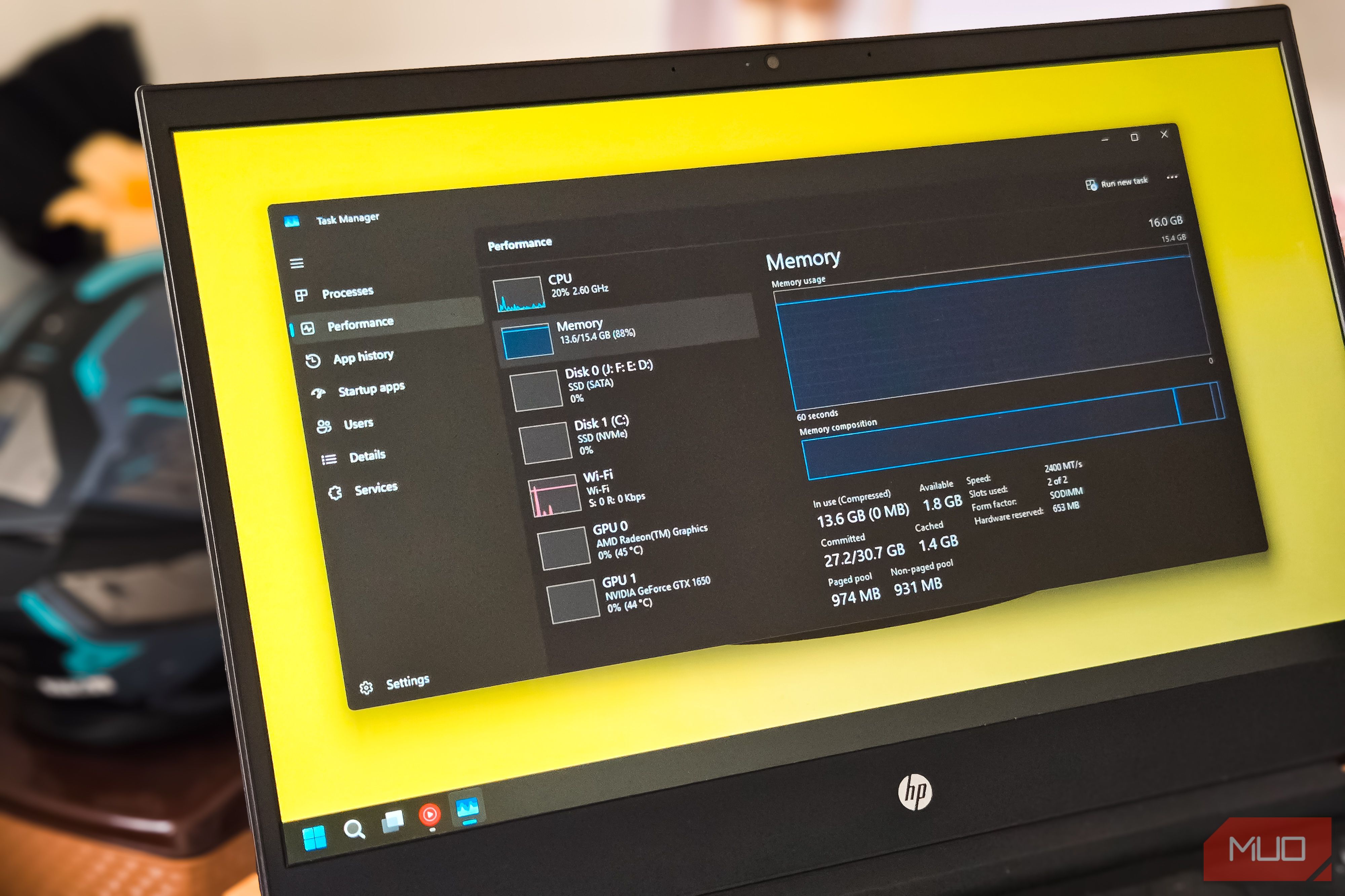
"I spent a year running without memory compression on a 32GB machine, thinking I was freeing up CPU overhead," said a source familiar with the tests. "Benchmarks and everyday usage both showed noticeable lag after disabling it. Re-enabling the feature brought back the snappiness I thought I'd lost."
Why Memory Compression Matters
Memory compression reduces the footprint of inactive data by compressing it in RAM, allowing the system to keep more processes in memory without paging to disk. On systems with fast SSDs, the CPU cost of compression is often lower than the I/O cost of swapping. The feature is enabled by default in Windows 10 and 11.
"The common misconception is that extra RAM makes compression unnecessary," noted a systems engineer. "But compression improves cache efficiency and reduces page faults, even when you have ample memory."
Background
The experiment began last year when the user, a long-time Windows power user, disabled the feature via PowerShell command. For months, they attributed slower app launches and stuttering to Windows updates or driver issues. It was only after a clean install with default settings that they noticed the improvement.
Further testing involved switching the feature on and off while running benchmarks including PCMark 10 and real-world multitasking. On a 32GB DDR4 system with a Core i7-13700K, disabling compression resulted in a 6–12% decrease in composite scores, particularly in application startup and web browsing tests.
What This Means
For most desktop users with modern CPUs and SSDs, leaving Windows memory compression enabled is the optimal choice. The CPU overhead is minimal (less than 2% on average), while the benefits in reduced memory pressure and faster access to compressed data outweigh any theoretical gains from disabling it.
"If you have 16GB or more, you might think you don't need compression, but the data shows otherwise," the source added. "Unless you are doing extremely CPU-sensitive work—like real-time audio processing—keep it on."
Microsoft has not officially commented, but the company has consistently recommended default settings for most users. The feature can be managed via the DisableCompression registry key, but experts advise against modifying it.
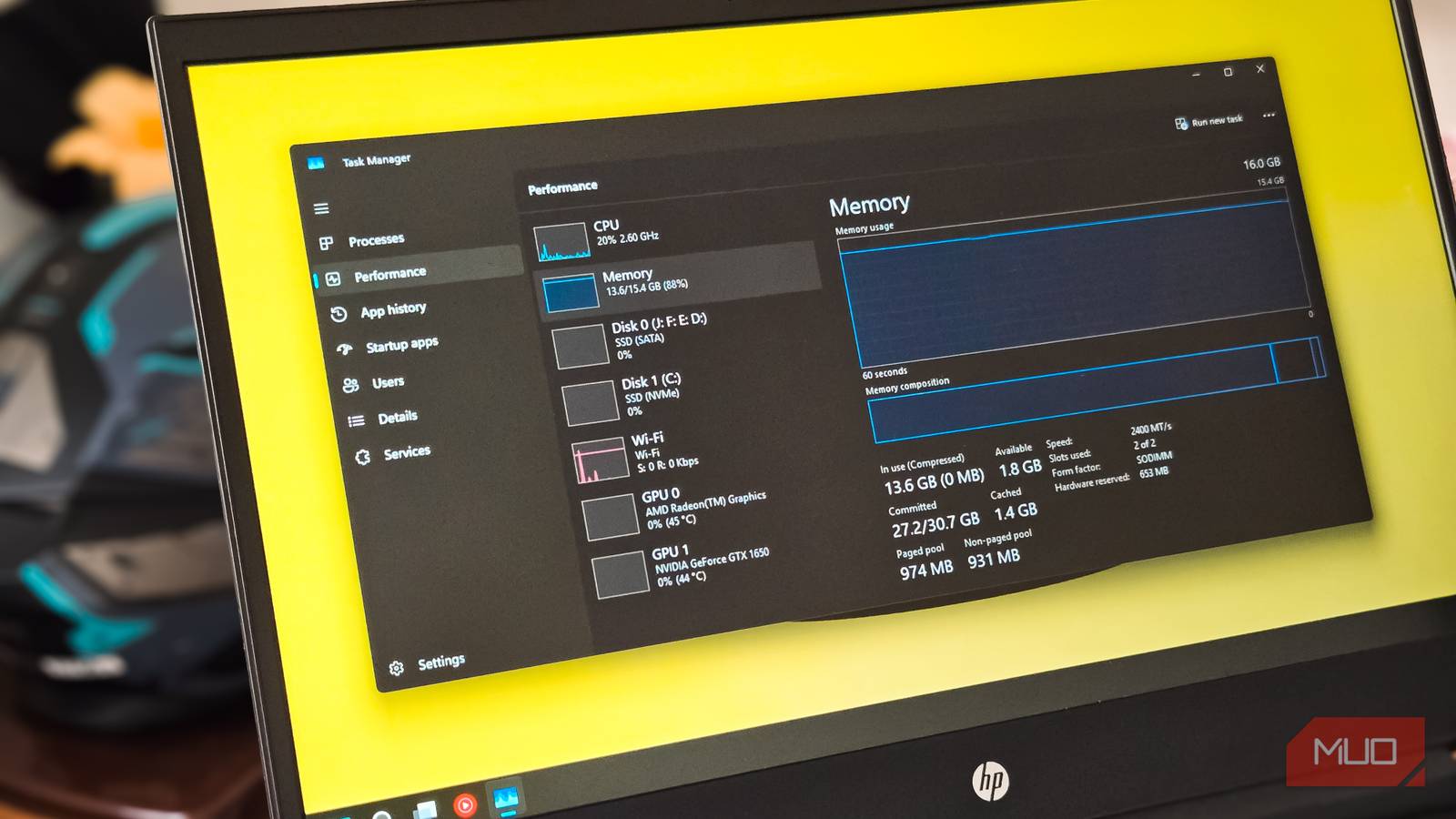
To check if memory compression is active, open Task Manager, go to Performance > Memory, and look for "In use (compressed)." A zero value indicates compression is disabled.
Bottom line: Disabling Windows memory compression is a tweak that can backfire on high-RAM PCs. Re-enabling it may restore performance you didn't realize was missing.