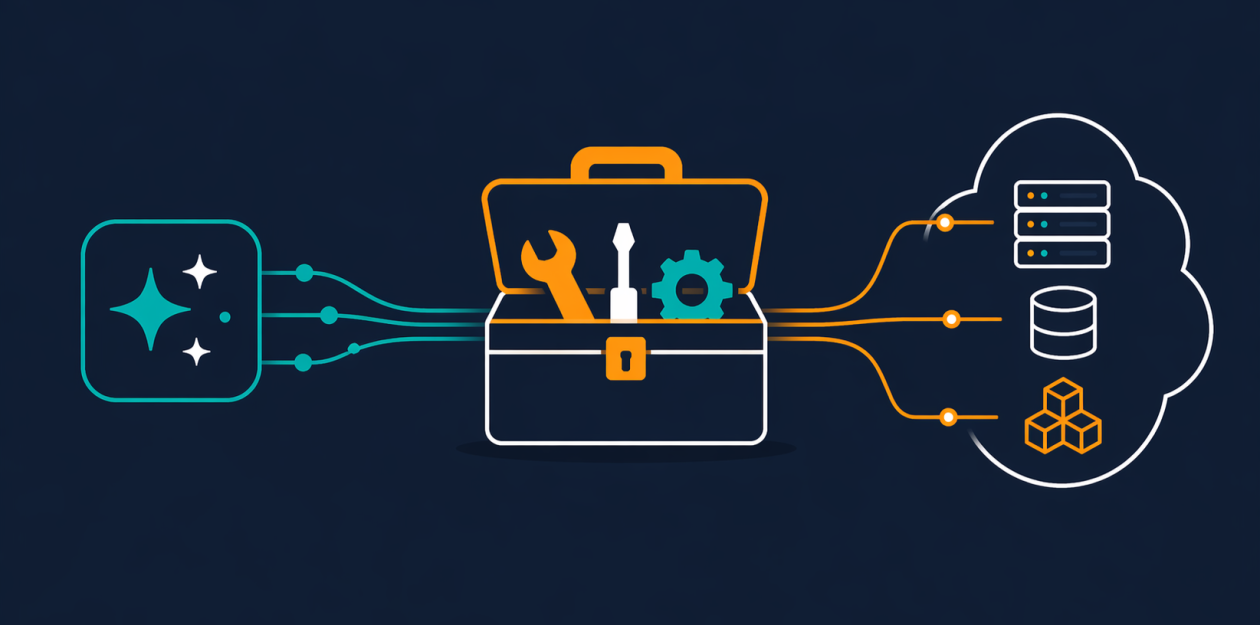
AI agents are powerful tools for automating cloud tasks, but handing them unrestricted AWS access is risky. The newly general-available AWS MCP Server solves this by providing a managed remote interface that lets your agent interact with over 15,000 AWS API operations using your existing IAM credentials—without exposing your account keys. This guide walks you through setting up the server, configuring permissions, and using its key tools to securely empower your coding assistants.
What You Need
- An AWS account with appropriate permissions to create IAM roles and policies
- Existing IAM credentials (access key and secret key) or an IAM role you can assume
- A supported AI coding agent (e.g., Claude, Cursor, or any agent that integrates with MCP)
- The AWS MCP Server, part of the Agent Toolkit for AWS (available now)
- Basic familiarity with AWS IAM, CloudFormation, or CDK (helpful but not required)
Step-by-Step Instructions
Step 1: Install or Configure the AWS MCP Server
The AWS MCP Server is a managed remote service—no local installation needed. Follow the official documentation to enable it within your AWS account. Typically, you deploy a CloudFormation stack that provisions the necessary infrastructure and exposes an endpoint. During setup:
- Choose an AWS region (use the same region as your workloads for low latency)
- Select the IAM role that the server will assume to execute API calls
- Note the server's endpoint URL (you'll need it later)
Step 2: Configure IAM Permissions with Context Keys
One of the key new features in general availability is support for IAM context keys. This means you no longer need a separate IAM permission just to use the MCP server. Instead, you manage fine-grained access directly inside standard IAM policies. For example:
- Create a policy that allows
mcp:CallAwsbut only on specific resources - Use condition keys to limit the operations the agent can perform (e.g., read-only access)
- Attach the policy to the IAM role used by the agent
This approach keeps your security model simple and audit-friendly.
Step 3: Set Up the MCP Server for Remote Access
Once the server is deployed, configure it for remote access. The server exposes an HTTPS endpoint that your AI agent can call. No need to share secret keys—the server uses your existing IAM credentials to authenticate each request.
- Ensure your agent can reach the endpoint (no public internet? use VPC endpoints)
- The server automatically inherits the IAM permissions of the role you attached in Step 2
- Test connectivity by making a simple
call_awsrequest, e.g.,ec2:DescribeRegions
Step 4: Connect Your AI Agent to the MCP Server
Most AI coding agents support the Model Context Protocol. Point your agent to the MCP server's endpoint. For example, in a Cursor or Claude configuration:
mcp:
  - name: "AWS MCP"
    url: "https://your-server-endpoint.example.com"
    auth: iam  # Uses your existing AWS credentials
The agent will now be able to call the MCP server's tools: call_aws, search_documentation, read_documentation, and run_script.
Step 5: Master the Core Tools
The AWS MCP Server provides a compact set of tools that don't consume your model's context window. Here's how to use each:
- call_aws – Perform any AWS API operation (e.g.,
s3:ListBuckets). The agent calls this just like a function. - search_documentation – Query live AWS documentation and best practices. The agent uses this to stay current with new services like Amazon S3 Vectors or Aurora DSQL.
- read_documentation – Retrieve full articles for deep context. Documentation retrieval now requires no authentication.
- run_script – Execute a short Python script in a sandboxed environment. The sandbox inherits IAM permissions but has no network access. Use this for chaining multiple API calls, filtering data, or performing computations in a single round-trip.
Step 6: Test with a Simple Task
Start with a basic request, such as listing all S3 buckets in your account. In your agent's chat, say: "List my S3 buckets using the AWS MCP server." The agent will call call_aws with the appropriate API operation. Verify the response includes your buckets. If it fails, check IAM permissions and endpoint connectivity.

Step 7: Leverage Skills for Best Practices
The server now replaces Agent SOPs with Skills. Skills provide curated guidance and best practices for common tasks like provisioning a secure VPC or deploying a serverless application. When your agent encounters a complex workflow, it can invoke a Skill that contains ready-made templates and IAM policy recommendations.
- Browse available Skills in the Agent Toolkit documentation
- Enable relevant Skills via the server's configuration
- Skills reduce token usage because they offload repetitive logic
Tips for a Smooth Experience
- Start with read-only permissions – Give your agent minimal access first, then expand as you trust its behavior.
- Use run_script for multi-step tasks – Instead of making ten separate
call_awscalls, have the agent write a single script that chains them. This is faster and preserves context tokens. - Keep documentation retrieval unauthenticated – Since that's now allowed, you save network overhead and avoid unnecessary credential usage.
- Monitor token consumption – The server has reduced tokens per interaction, but complex workflows still add up. Use
read_documentationsparingly; rely onsearch_documentationfor quick lookups. - Stay updated – New AWS APIs are supported within days of launch. Periodically update your server deployment to benefit from the latest tools.
- Sandbox security – The
run_scriptsandbox has no network access and inherits only IAM permissions. Never grant it more privileges than necessary.
By following these steps, you'll give your AI agent powerful, secure access to AWS—without handing over the keys to the kingdom. The AWS MCP Server is now generally available, so start exploring today.